ISpooferMotion V2 Wiki
Complete guide for setting up and using ISpooferMotion V2.
⚡ Quick Start
Get up and running in minutes. Each step links to the detailed section if you need more info.
Install ISpooferMotion V2 and open the app
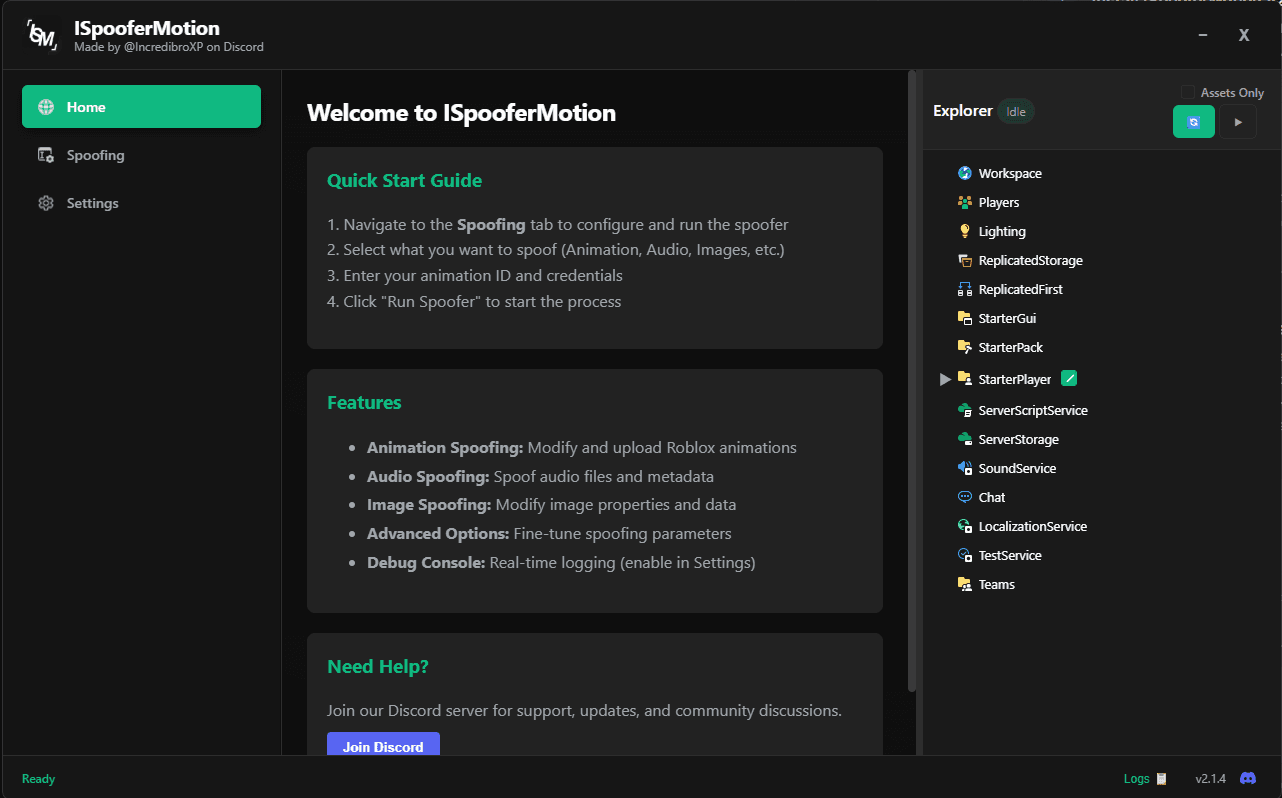
Install the Studio plugin and enable Poll mode
Enter your cookie and API key
Scan your place
Select assets and spoof
IDs are replaced automatically
Overview
ISpooferMotion V2 is a complete rewrite of the original tool. It expands asset support to cover animations, audio, images, decals, and meshes — and introduces a new Studio plugin architecture that uses a local HTTP server on port 3100 for real-time communication between the app and Studio.
V2 also includes an Asset Explorer for browsing a creator's inventory, batch transfer support, group upload capability, and advanced script scanning that detects asset IDs even when they appear as bare numbers inside tables or module scripts.
What's New in V2
More asset types
Images, decals, and meshes are now fully supported alongside animations and audio.
Script reference detection
The plugin finds asset IDs inside script source code, including bare numbers in arrays and tables.
Poll mode
The plugin can continuously poll for scan requests so you don't have to click Run manually each time.
Asset Explorer
Browse any user or group inventory directly inside the app to find and spoof assets.
Group uploads
Upload assets directly to a Roblox group instead of a personal account.
Batch operations
Download and upload large sets of assets concurrently with per-transfer progress tracking.
Requirements
- Windows 10 or later (macOS builds also available)
- Roblox Studio installed
- A Roblox account with the assets you want to transfer
- An Open Cloud API key with Assets Read & Write permissions
- HTTP requests enabled in Roblox Studio
- Port 3100 available on localhost (not blocked by firewall)
Installation
Download ISpooferMotion V2
Run the installer
Launch V2
Installing the Roblox Studio Plugin
Get the plugin
Install in Studio
Enable HTTP requests
Verify the plugin
Open Cloud API Key
All uploads in V2 — including images, decals, and meshes — require an Open Cloud API key. The key determines which account or group receives the new assets.
Go to the Roblox Creator Hub
Create an API key
Add Assets permission
Save and copy the key
Using the Studio Plugin
Run (manual)
Performs a one-shot scan of the entire place immediately. Use this when you want to scan on demand without leaving the plugin running.
Poll (continuous)
The plugin checks the local server every 0.5 seconds for scan requests. When you click Scan in the app, Studio responds automatically. Recommended for an active workflow.
Start ISpooferMotion V2
Open your place in Studio
Click Poll to enable continuous mode (recommended)
Polling startedTrigger a scan from the app
Wait for results
Asset Types
Animations
Scanned from Animation instances and script references. Downloaded as .rbxm files and uploaded as Animation assets via Open Cloud.
Audio / Sounds
Scanned from Sound instances and script references. Downloaded as .ogg files and uploaded as Audio assets via Open Cloud.
Images & Decals
Scanned from Decal, Texture, ImageLabel, and ImageButton instances. Downloaded as .png files and uploaded as Decal assets via Open Cloud.
Meshes
Scanned from MeshPart and SpecialMesh instances. Downloaded from Roblox asset delivery and re-uploaded via Roblox's legacy mesh upload endpoint.
Script References
The plugin reads the source code of every Script, LocalScript, and ModuleScript in the place. It finds asset IDs written as rbxassetid:// URLs, bare numbers assigned to asset-related variables, and numbers inside named asset tables. Each found ID is verified via Roblox's MarketplaceService to confirm its asset type before being added to the correct category.
Asset Explorer
The Asset Explorer lets you browse a user or group's Roblox inventory directly from within ISpooferMotion V2, without needing to open Studio at all.
Open the Asset Explorer tab
Enter a creator ID
Browse and select assets
Spoof selected assets
Spoofing Assets
Select assets
Configure upload target
Choose mode
- Download & Upload — Download & Upload — downloads then re-uploads all selected assets, replacing old IDs in Studio.
- Download Only — Download Only — downloads asset files to your Downloads folder without uploading.
Start spoofing
IDs are replaced automatically
Group Uploads
V2 supports uploading assets directly to a Roblox group, so that the group owns the new asset IDs rather than any individual user.
Create an API key for a group-member account
Set the upload target to Group
Enter the Group ID
Spoof as normal
Spoof Options
The toggles in the Spoof tab control which asset types are included in each run.
Animation
Include animation assets. Scanned from Animation instances and script references. Uploaded as Animation type via the Open Cloud Assets API.
Audio
Include sound and audio assets. Scanned from Sound instances and script references. Uploaded as Audio type via Open Cloud API.
Images
Include image and decal assets. Scanned from Decal, Texture, ImageLabel, and ImageButton instances. Uploaded as Decal type via Open Cloud API.
Meshes
Include MeshPart and SpecialMesh assets. RBXM model files are uploaded via Open Cloud; raw .mesh binaries use the legacy Roblox mesh endpoint.
Script Refs
Scan every Script, LocalScript, and ModuleScript in the place for asset IDs. Finds rbxassetid:// URLs, numbers assigned to AnimationId or SoundId properties, and numbers inside named asset tables. Each ID is verified via MarketplaceService before being added to the correct category.
Enable Spoofing
Master switch. When off, the Run Spoofer button is disabled. Scanning still works — you can preview what would be spoofed without triggering any uploads.
Settings Reference
General
Auto Update
Checks for a new version each time the app starts and prompts you to install it. Disable if you want to control when updates are applied.
Start on Boot
Registers the app to launch automatically when Windows starts.
Lock Window Aspect Ratio
Prevents the window from being freely resized. Useful if your custom theme is designed for a fixed layout.
Theme
Select a built-in color theme. Themes change the app's colors, accents, and backgrounds.
Import Custom Theme
Load a JSON file that defines a fully custom color scheme for the app. Theme files override all built-in color variables.
Import Theme Icon
Optionally replace the app logo with an image from your theme pack.
Language
Switch the interface between English, Español (Spanish), and Русский (Russian).
Advanced Options
Debug Mode
Opens the debug console at the bottom of the window showing real-time log output. Enable this when troubleshooting scan or upload failures.
Enable Cache
Stores downloaded asset files on disk so they are not re-downloaded on repeat runs. On by default. Disable to force fresh downloads or free up disk space via Clear Cache.
Show ID Input Box
Shows a manual text input in the Spoof tab. Paste asset IDs directly here to bypass the Studio plugin scan — useful for spoofing a handful of known IDs without opening Studio.
Enable Sound Playback
Plays a notification sound when a spoof run finishes. Currently marked as work-in-progress and may not function in all configurations.
Cookies
Auto detect cookie (studio)
Reads the .ROBLOSECURITY cookie directly from the Roblox Studio credential store on your machine. The Cookie field is filled automatically. Studio must be installed and you must be signed in.
Auto detect cookie (browser)
Reads the cookie from an installed browser. Chrome must be fully closed; Firefox reads from an unencrypted SQLite file.
Ownership
Skip assets you already own
On by default. Any asset already owned by the target account or group is skipped. Turn off to force re-upload of assets the target already owns — for example, when consolidating personal assets into a group.
Output
Transfer mode
Reupload to Roblox (default): downloads and re-uploads each asset, then sends old-to-new ID mappings to the Studio plugin for replacement. Download files only: saves files locally without uploading or replacing any IDs. Useful for archiving.
Download location
Folder where downloaded asset files are saved when using Download files only mode. Click the folder icon to browse.
Routing & Limits
Plugin Server Port
The local port the app's HTTP server listens on for Studio plugin connections. Default is 3100. Change this if port 3100 is in use by another application. Requires restarting the app.
Force Place ID(s)
Enter one or more place IDs (comma-separated) to use for all asset download requests, bypassing auto-discovery. Leave blank to let the app find place IDs automatically. Not saved between sessions.
Place ID search limit
How many of the creator's games to check when auto-detecting place IDs. Default is 20. Increase if batch downloads fail for creators with large game catalogues. Higher values increase startup time.
Asset Scan Timeout
How long in seconds to wait for the Studio plugin to complete a scan before timing out. Default is 20 seconds. Increase for very large places or slow connections.
Exclusions
Excluded User IDs
Assets owned by any user ID in this list are skipped during the spoof run. Enter multiple IDs separated by commas or spaces. Useful for skipping Roblox-owned or third-party assets you don't need to replicate.
Excluded Group IDs
Assets owned by any group in this list are skipped. Same format as Excluded User IDs.
Branding
Logo Transparency
Controls the opacity of the app logo in the interface. Slide to 0% to hide it entirely, 100% for full opacity. Only affects the logo display inside the app.
Troubleshooting
Plugin shows 'no data' after scanning
Make sure ISpooferMotion V2 is open and the server on port 3100 is running before you click Run or Poll. If the scan completes instantly with no results, the place may have no supported assets.
Scanning stays stuck at 'scanning: true'
This can happen if the place has no assets of a given type — the plugin sends nothing to the server so it waits for data that never arrives. This is fixed in recent versions with an automatic 15-second timeout. Update to the latest version.
IDs not replaced in scripts after spoofing
Make sure the plugin is in Poll mode and was active during the spoof. The replacement is applied through the plugin — if Poll was off, the IDs won't be updated. You can also re-trigger replacement manually from within the app.
Asset Explorer shows no results
Verify your cookie is valid and that the User ID or Group ID is correct. Private inventories may not be accessible depending on the account's privacy settings.
Upload fails with 'API key unauthorized'
Your key either lacks Assets Write permission or was created under an account that doesn't have upload rights to the target group. Recreate the key with the correct permissions.
Mesh uploads fail
Mesh uploads use Roblox's legacy upload endpoint rather than Open Cloud, and require your .ROBLOSECURITY cookie. Make sure your cookie is valid and that the account has permission to upload assets. If uploads still fail, the legacy endpoint may be temporarily unavailable.
Rate limit errors (429)
The Open Cloud API rate-limits heavy upload batches. ISpooferMotion V2 retries automatically with exponential backoff. For very large batches, wait a few minutes between runs.